How to Cancel CapCut Pro Subscription in 2026
Cancel CapCut Pro subscription easily in 2026. Follow simple steps for Android & iOS and avoid future charges.
How to Cancel CapCut Pro Subscription (2026)
If you are currently using CapCut Pro and want to cancel your subscription, this complete guide will help you do it quickly and safely. CapCut allows users to cancel their Pro plan at any time through official app stores.
In this 2026 updated guide, we explain how to cancel CapCut Pro subscription on Android and iPhone, along with important things to know before canceling.
How to Cancel CapCut Pro Subscription
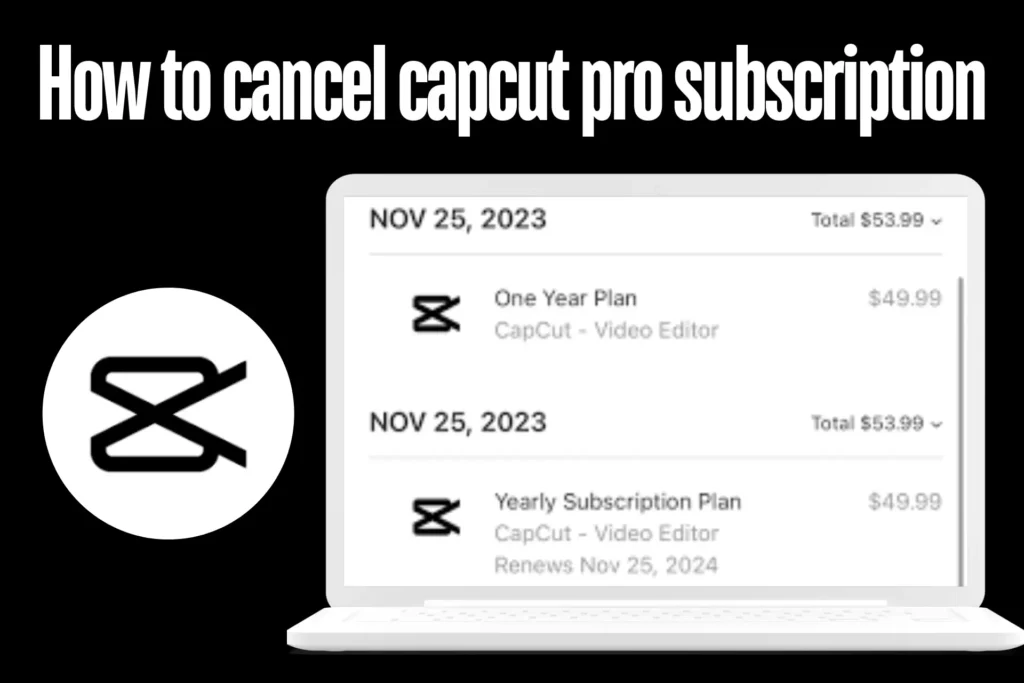
You can cancel your CapCut Pro subscription anytime if you no longer need the premium features. The cancellation process depends on the device you used to subscribe (Android or iOS).
⚠️ Note: Deleting the CapCut app does not cancel your subscription. You must cancel it from the app store.
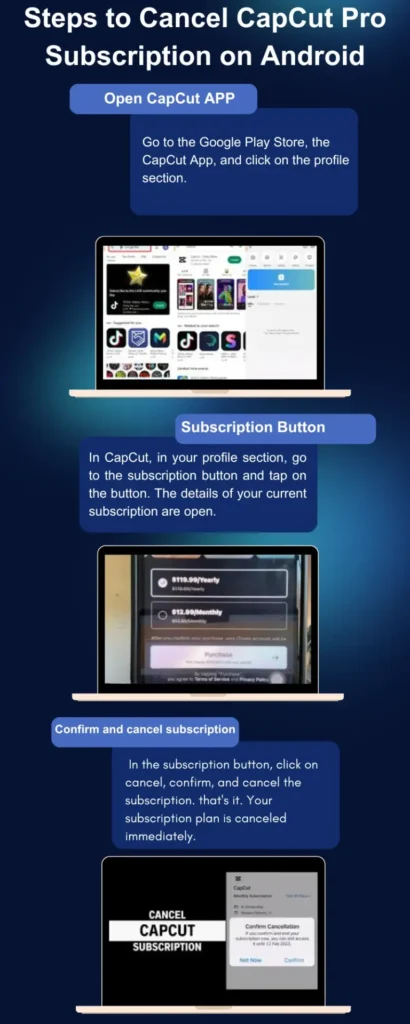
How to Cancel CapCut Pro Subscription on Android
If you subscribed using an Android device, follow these steps:
- Open Google Play Store
Launch the Google Play Store on your Android phone. - Go to Profile Section
Tap on your profile icon (top-right corner). - Open Payments & Subscriptions
Select Payments & subscriptions, then tap on Subscriptions. - Find CapCut Subscription
Locate CapCut Pro from the list. - Cancel Subscription
Tap Cancel subscription and confirm.
✅ Your CapCut Pro subscription will be canceled, and you won’t be charged again after the current billing cycle.
How to Cancel CapCut Pro Subscription on iPhone (iOS)
If you subscribed on an iPhone or iPad, follow these steps:
- Open Settings
Go to your iPhone Settings. - Tap Apple ID
Tap your name (Apple ID) at the top. - Open Subscriptions
Select Subscriptions from the list. - Select CapCut
Find and tap on CapCut Pro. - Cancel Subscription
Tap Cancel Subscription and confirm.
✅ Your CapCut Pro membership will remain active until the renewal date, but no future charges will apply.
Important Things to Know Before Canceling CapCut Pro
Before canceling your subscription, keep these points in mind for a smooth experience:
Use Pro Features Until Expiry
After cancellation, you can still access CapCut Pro features until your current billing period ends.
Save All Pending Projects
Make sure to complete or export your important projects before the subscription expires, especially if they use Pro-only assets.
Cancel Before Renewal Date
It’s recommended to cancel at least 24 hours before the renewal date to avoid accidental charges.
Contact CapCut Support if Needed
If you face issues canceling your subscription or accessing features, contact official CapCut support for help.
Frequently Asked Questions (FAQs)
Will I get a refund after canceling CapCut Pro?
Refunds depend on Google Play Store or Apple App Store policies. CapCut itself does not directly issue refunds.
Can I re-subscribe after canceling?
Yes, you can re-activate CapCut Pro anytime from the app store.
Does uninstalling CapCut cancel the subscription?
No, uninstalling the app does not cancel your subscription.
Final Conclusion
Canceling your CapCut Pro subscription is simple and safe when done through official app store settings. Just remember to save your projects, use Pro features until expiry, and cancel before the renewal date to avoid charges.
This 2026 guide covers all essential steps to help you cancel CapCut Pro without confusion or risk.