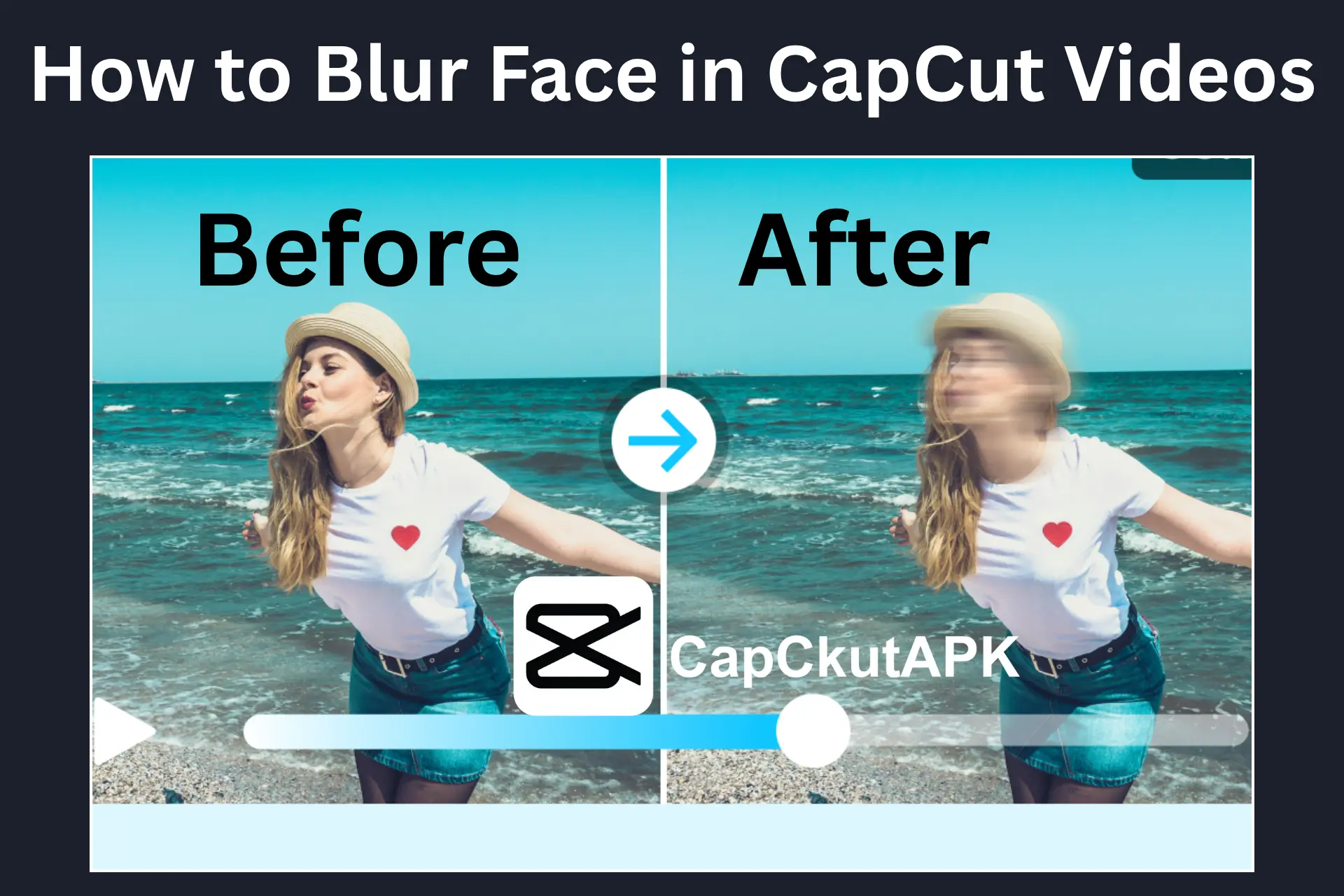
Easy Ways to Blur Faces in CapCut Videos (Updated 2026)
Want to hide faces in CapCut videos? Discover easy methods to blur faces using blur, mosaic, and mask tools in CapCut (2026 guide).
CapCut Face Blur Tutorial 2026 Hide Faces Like a Pro
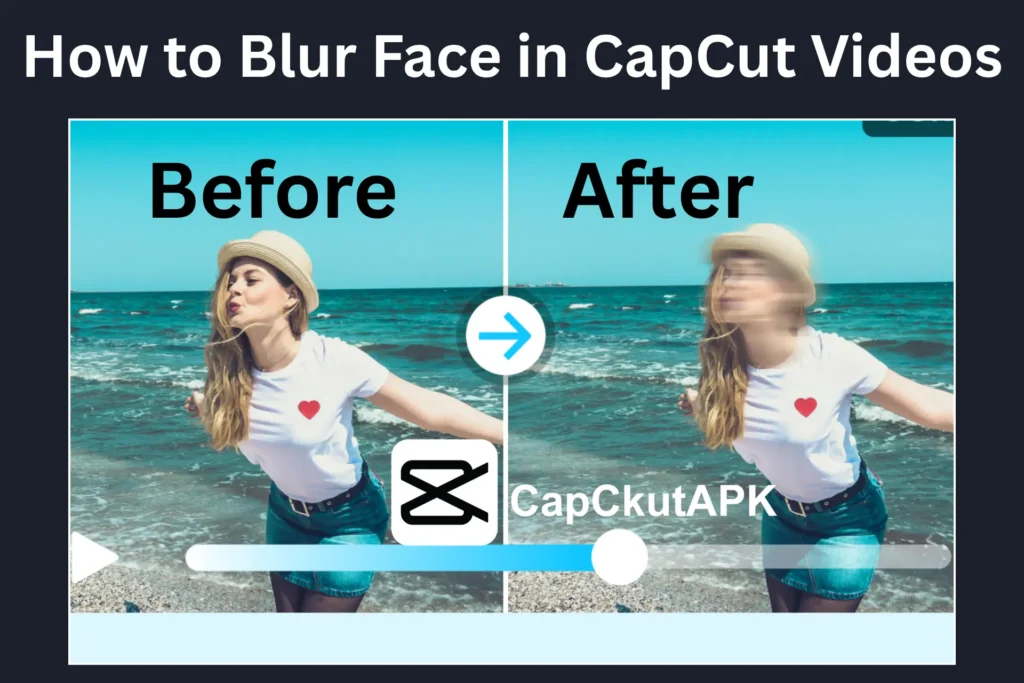
Sometimes while recording videos, faces appear that you may want to keep private. These could be strangers, children, or moments you don’t want to share publicly. Blurring faces is the best way to protect privacy while keeping your video professional and shareable.
CapCut offers powerful blur and mosaic tools that allow you to hide faces easily. In this guide, you’ll learn how to blur faces in CapCut videos step by step using simple and effective methods.
Step-by-Step Guide to Blur Face in CapCut
Follow these easy steps to blur a face in your CapCut video:
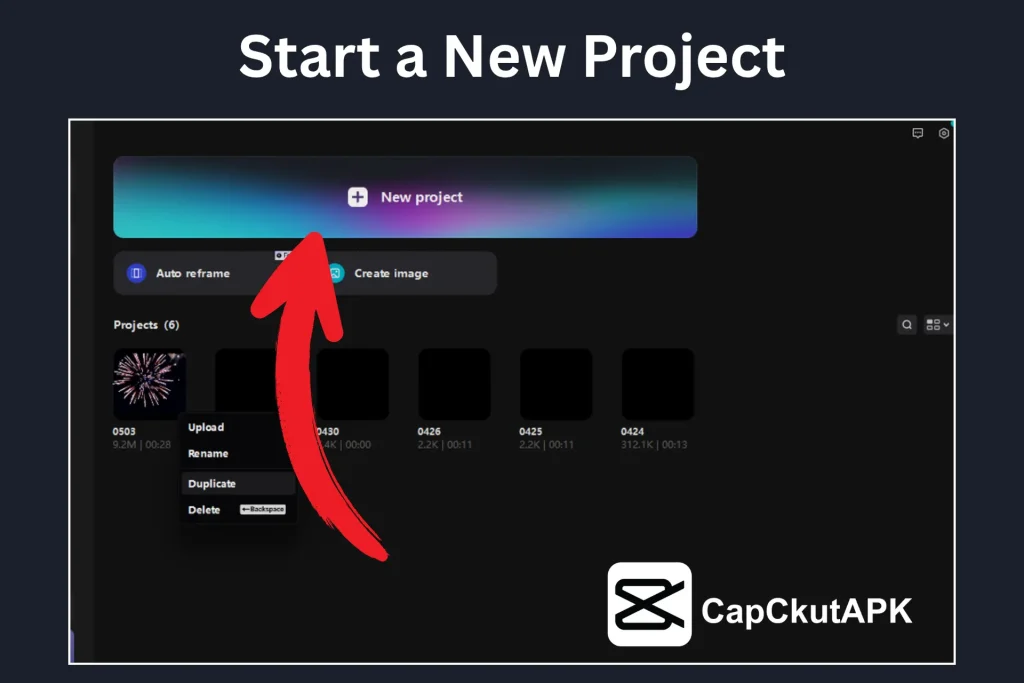
Start a New Project
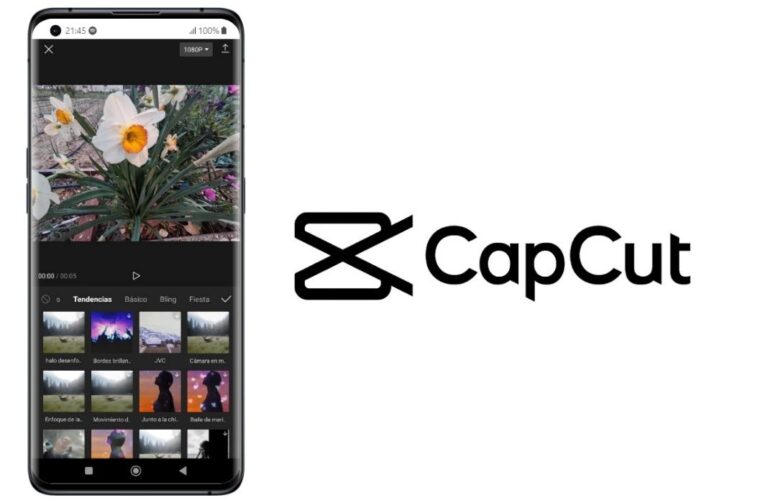
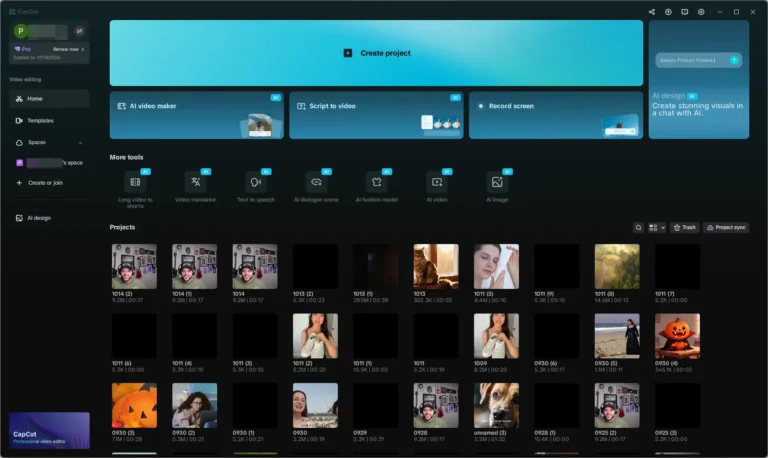
Open CapCut Pro APK on your device and tap on New Project. Select the video you want to edit and add it to the timeline.
Add Video to Timeline
Once the video is added, it will appear on the timeline. You can trim or adjust the clip if needed before applying the blur effect.
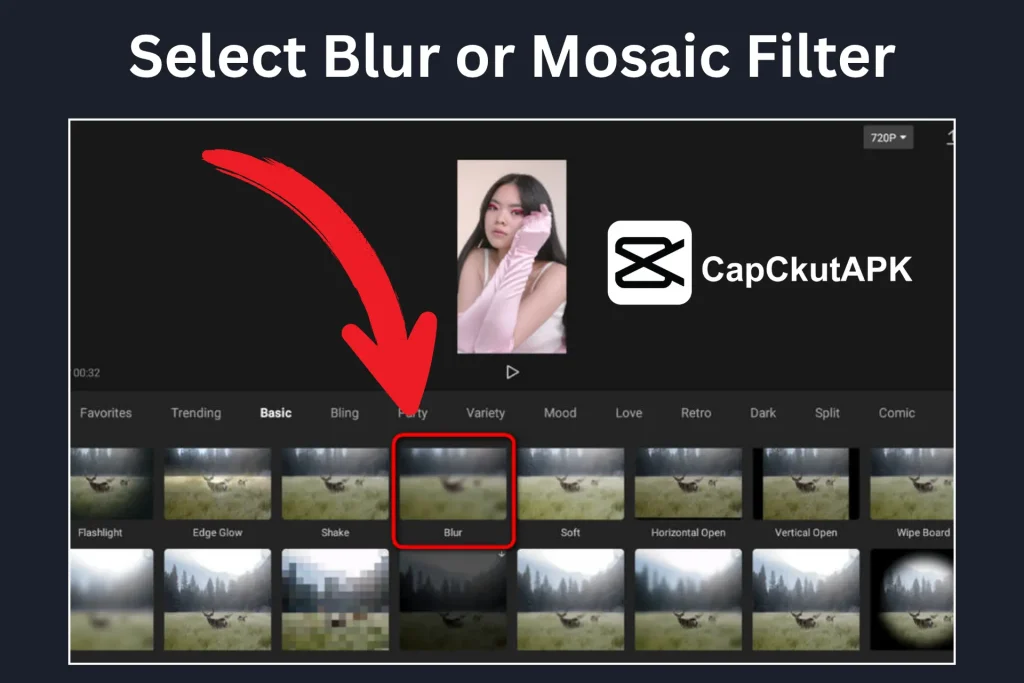
Select Blur or Mosaic Effect
- Go to the Effects panel
- Choose Blur or Mosaic for a strong hiding effect
- These effects are commonly used to hide faces clearly
Apply the Effect
Apply the selected effect to your video. Use the slider to adjust the blur strength according to your needs.
Use the Mask Tool
- Tap on the Mask option
- Select a shape (circle, rectangle, etc.)
- Resize and place the mask over the face you want to blur
Track the Face Using Keyframes
If the face moves in the video, you need to track it manually:
Add more keyframes until the mask follows the face throughout the clip
Move the playhead to the start of the clip
Add a keyframe with the mask placed on the face
Move forward in the video and reposition the mask
Preview the Video
Play the video to make sure the face remains blurred for the entire duration. Adjust the mask or blur strength if required.
Export the Video
Once satisfied, export the video in high quality and resolution and save it to your device.
Common Methods to Blur Face in CapCut
Blur Effect
The blur effect smoothly hides faces without affecting the rest of the video. You can control how light or strong the blur appears.
Mosaic Effect
The mosaic effect creates pixel blocks over the face, making it unrecognizable. This is ideal for strong privacy protection.
Stickers or Shapes
You can also use solid shapes or stickers to cover faces. This method works well for static shots.
Auto Face Mosaic
Some versions of CapCut include an auto face mosaic feature. It automatically detects faces and applies blur without manual tracking.
Benefits of Blurring Faces in CapCut
Blurring faces in videos offers many advantages:
- Protects personal privacy
- Hides unwanted people in the background
- Keeps viewers focused on the main subject
- Makes videos safe for social media sharing
Conclusion
Blurring faces in CapCut videos is an easy and effective way to protect privacy. With tools like blur, mosaic, mask, and auto face detection, CapCut Pro APK makes face blurring simple even for beginners. By following the steps in this guide, you can hide unwanted faces professionally and share your videos with confidence.
FAQs Frequently Asked Questions
Can I blur more than one face in CapCut?
Yes, you can add multiple masks to blur more than one face in the same video.
Does CapCut automatically blur faces?
Some versions of CapCut support the auto face mosaic feature, which automatically detects and blurs faces.
Can I adjust the blur strength?
Yes, CapCut allows you to increase or decrease the blur intensity based on your preference.