How to Fix CapCut Network Errors in 2026 Easy And Quick Solutions
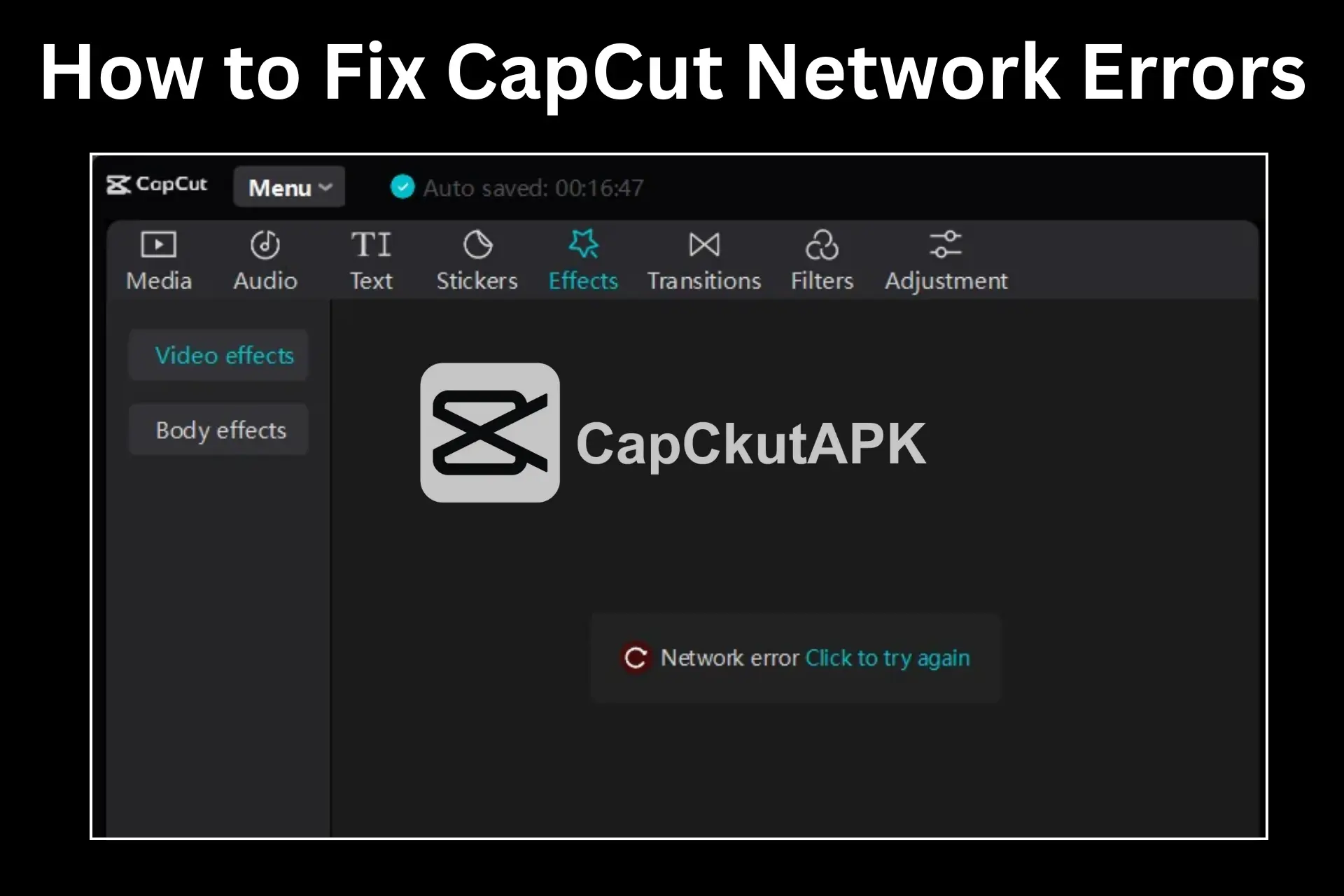
CapCut is one of the most popular video editing apps in 2025, used by millions of creators for professional and personal projects. However, many users face CapCut network errors while editing, downloading templates, or saving videos. These errors can waste time and interrupt your workflow.
Common Reasons for CapCut Network Errors
Weak or Unstable Internet Connection
CapCut requires a stable internet connection to load templates, effects, and cloud features. Poor Wi-Fi or mobile data often causes network errors.
2. Regional Restrictions or Ban
In some countries, CapCut is restricted due to government policies. This can prevent the app from connecting to CapCut servers.
3. Outdated CapCut Version
Using an old or buggy version of CapCut can result in connection issues and server errors.
4. Corrupted Cache Files
Damaged or overloaded cache files may block CapCut from accessing its servers properly.
5. Incorrect DNS Settings
Wrong DNS configurations can stop CapCut from establishing a secure server connection.
6. Firewall or Security Blocking
Firewalls or antivirus software sometimes block CapCut’s internet access unintentionally.
7. CapCut Server Downtime
Sometimes the issue is not on your side. CapCut servers may be temporarily down due to maintenance or updates.
How to Fix CapCut Network Errors (Step-by-Step Solutions)
1. Check Your Internet Connection
- Open any website to test your internet
- Restart your Wi-Fi router or mobile data
- Switch to a stronger network if available
2. Restart the CapCut App
Close the CapCut app completely, wait 10–15 seconds, and reopen it. This simple step often fixes temporary network glitches.
3. Clear CapCut Cache and Data
- Go to Settings > Apps > CapCut
- Tap Clear Cache (and Clear Data if needed)
- Restart the app
4. Update CapCut to the Latest Version
Always install the newest CapCut update to avoid bugs and compatibility issues.
5. Disable VPN or Proxy (If Not Required)
VPNs and proxy servers can interfere with CapCut’s servers.
👉 If CapCut is banned in your region, you may need a reliable VPN.
6. Reinstall the CapCut App
Uninstall CapCut, restart your device, and reinstall the app from a trusted source.
7. Check CapCut Server Status
Visit CapCut’s official support channels or social media pages to confirm if servers are down. If yes, wait until services are restored.
8. Turn Off Battery Saver Mode
Battery saver mode can restrict background data usage. Disable it to allow CapCut to function properly.
9. Use CapCut Web or PC Version
If the mobile app still shows errors, try:
CapCut PC version (or emulator)
CapCut Web version
Advanced Troubleshooting Tips
- Change your network DNS settings (Google DNS or Cloudflare DNS)
- Allow CapCut through firewall or antivirus settings
- Use a premium VPN if required in restricted regions
- Update your device’s operating system for better compatibility
FAQs CapCut Network Error
Q1: Why does CapCut say “No Internet Connection” even when Wi-Fi is working?
This usually happens due to corrupted cache, VPN interference, or DNS issues.
Q2: Can VPN fix CapCut network errors?
Yes, in banned regions a VPN can help, but unnecessary VPN use may also cause errors.
Q3: Does CapCut Pro reduce network errors?
CapCut Pro offers smoother performance, faster cloud access, and premium features that reduce interruptions.
Conclusion
CapCut network errors can be frustrating, especially during important video editing projects. These issues usually occur due to unstable internet, corrupted cache, outdated app versions, DNS problems, or server maintenance. By following the solutions in this guide such as checking your internet, clearing cache, updating the app, or adjusting network settings you can easily fix most CapCut network problems.
For an even smoother and more professional editing experience, many creators prefer CapCut Pro, which provides advanced tools, better stability, and premium features.