How to Remove CapCut Logo in 2026:
Are you tired of seeing the CapCut logo watermark on your videos? Whether you’re an aspiring influencer or a seasoned content creator, removing the CapCut logo will help make your videos look more professional and polished. In this guide, we’ll show you the best ways to delete or hide the CapCut logo from your video edits.
Why You Should Remove the CapCut Logo from Your Videos
1. Professional Presentation
A clean, watermark-free video enhances the overall viewing experience. The CapCut logo can distract your audience from your content, making your video look less polished. Removing the watermark will allow your viewers to focus on the quality of your video instead of the logo.
2. Stronger Personal Branding
When you create content to build your personal brand, you want to ensure that your logo or name is front and center, not someone else’s. A CapCut logo on your video can dilute your brand’s identity, making it important to remove it for a more cohesive and professional image.

How to Remove the CapCut Logo from Your Video
1. On Android Devices:
If you’re using CapCut on Android, here’s how to delete or hide the logo:
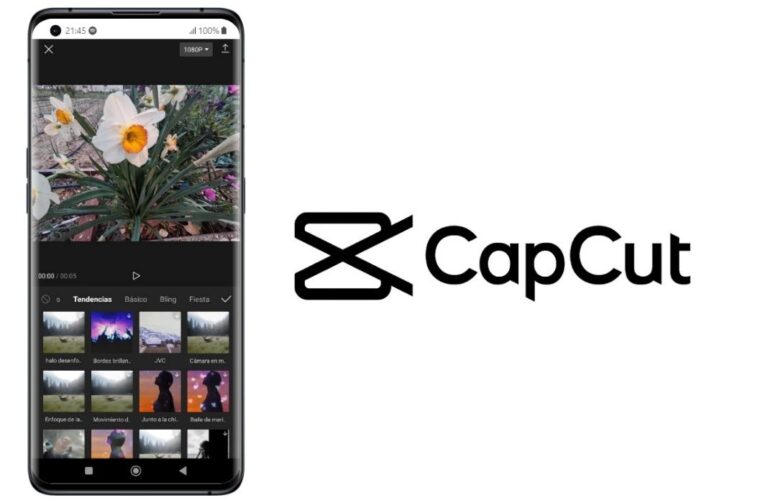
- Open CapCut: Launch the CapCut app on your Android device.
- Create or Edit Your Project: Start a new project or open an existing one.
- Remove the Logo: Navigate to the last frame where the CapCut logo appears. You should see an option to either delete or move the logo. Simply select the option to remove it, and the logo will be gone.
2. Using Third-Party Apps to Remove CapCut Logo:
If the option to remove the logo isn’t available, or if you’re looking for a more advanced solution, third-party apps can help you delete or hide the watermark. Here are a couple of popular apps:
InShot and VN Video Editor are excellent alternatives to remove the CapCut watermark. Here’s how you can use them:
- Download and Install a Third-Party App: Go to the Google Play Store or Apple App Store and install InShot or VN Video Editor.
- Import Your CapCut Video: Open the third-party app and upload the CapCut video you want to edit.
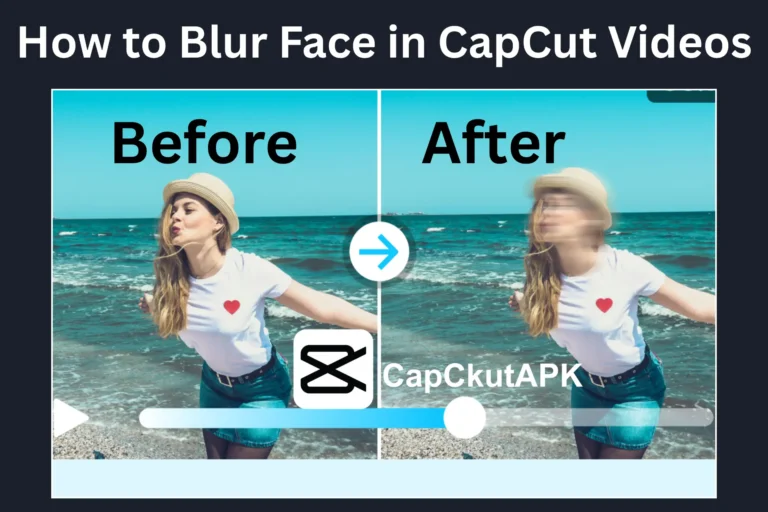
- Remove or Blur the Logo: Use the app’s editing tools to either crop out the area with the CapCut logo or apply a blur effect to hide the watermark.
Advanced Solution: CapCut Premium (Paid Version)
CapCut pro version offers that removes the watermark automatically during video exports. If you frequently use CapCut for professional video editing, upgrading to the premium version may be worth considering for a seamless, watermark-free experience.
Final Thoughts
While the CapCut logo watermark is a reminder of the great features the app offers, removing it can give your videos a more professional and clean appearance. Whether you’re editing on Android or iOS, the methods we’ve discussed above can help you easily remove the CapCut logo and elevate your content.
If you’re not satisfied with the built-in features, third-party apps like InShot and VN Video Editor are excellent alternatives for cropping or blurring the watermark. For a hassle-free experience, consider upgrading to the CapCut Premium version to automatically remove the logo.