How to Use Advanced Features in CapCut for Pro Videos
Learn how to use advanced CapCut features like AI background removal, keyframes, color grading, and transitions to create professional-quality videos.
How to Use Advanced Features in CapCut: A Complete Guide
CapCut has become one of the most popular mobile video editing apps, offering a wide range of tools to create professional-looking videos right from your smartphone. While its basic features are great for quick edits, learning how to use advanced features in CapCut can elevate your content and make your videos stand out.
AI-Powered Background Removal
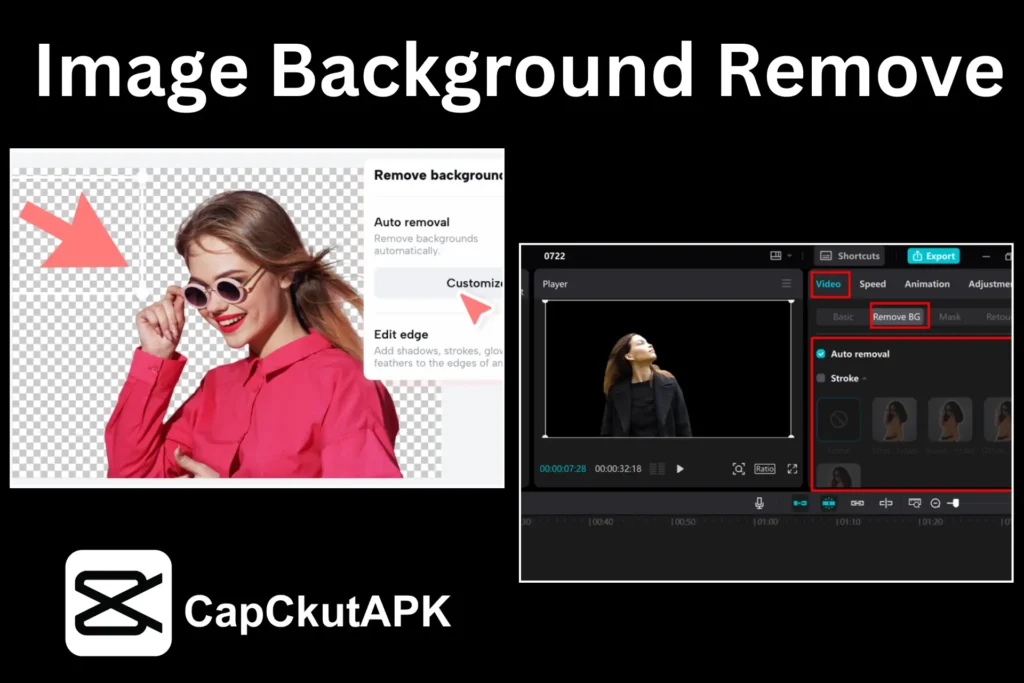
One of CapCut’s most powerful tools is AI background removal. With just a few taps, you can remove the background of your video without a green screen. This feature is perfect for creating professional intros, promotional videos, or content with a clean, distraction-free background.
Keyframe Animation for Dynamic Motion
Keyframes allow precise control over the movement of video elements. You can animate objects, text, or stickers to move, rotate, or scale smoothly over time. This feature is ideal for storytelling, making videos visually appealing, and adding creative effects.
Advanced Color Grading
CapCut provides professional color adjustment tools, including brightness, contrast, saturation, temperature, and highlights. You can also apply cinematic presets to give your videos a consistent, polished look that matches the mood of your content.
Smooth Transitions Visual Effects
From glitch effects to cinematic transitions, CapCut offers a wide variety of options to make your videos more dynamic. Using these advanced effects strategically can enhance viewer engagement and make your content more shareable.
Auto Captions & Text Animations
Adding captions has never been easier. CapCut can automatically generate captions from your video audio, saving time and improving accessibility. You can also animate text in creative ways to emphasize key points and make your content more professional.
High-Quality Export & Sharing
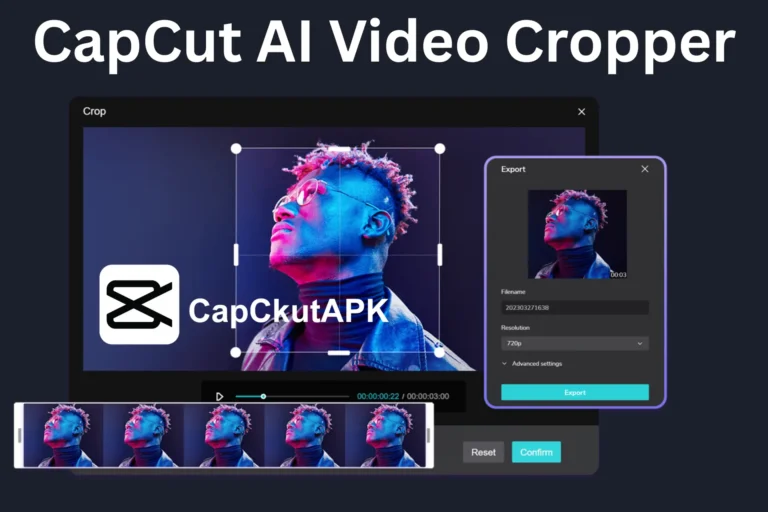
After editing, CapCut allows you to export videos in HD or 4K resolution. You can also select the frame rate and quality settings to ensure your content looks great on all platforms like YouTube, Instagram, or TikTok.
Conclusion
Mastering how to use advanced features in CapCut opens up endless possibilities for content creation. From AI background removal and keyframe animations to color grading and animated captions, these tools allow both beginners and professionals to create high-quality videos effortlessly.